

Key Takeaways (TL;DR)
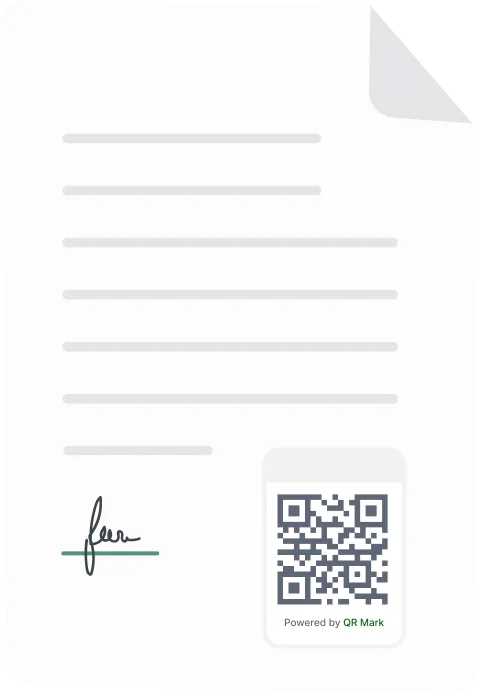
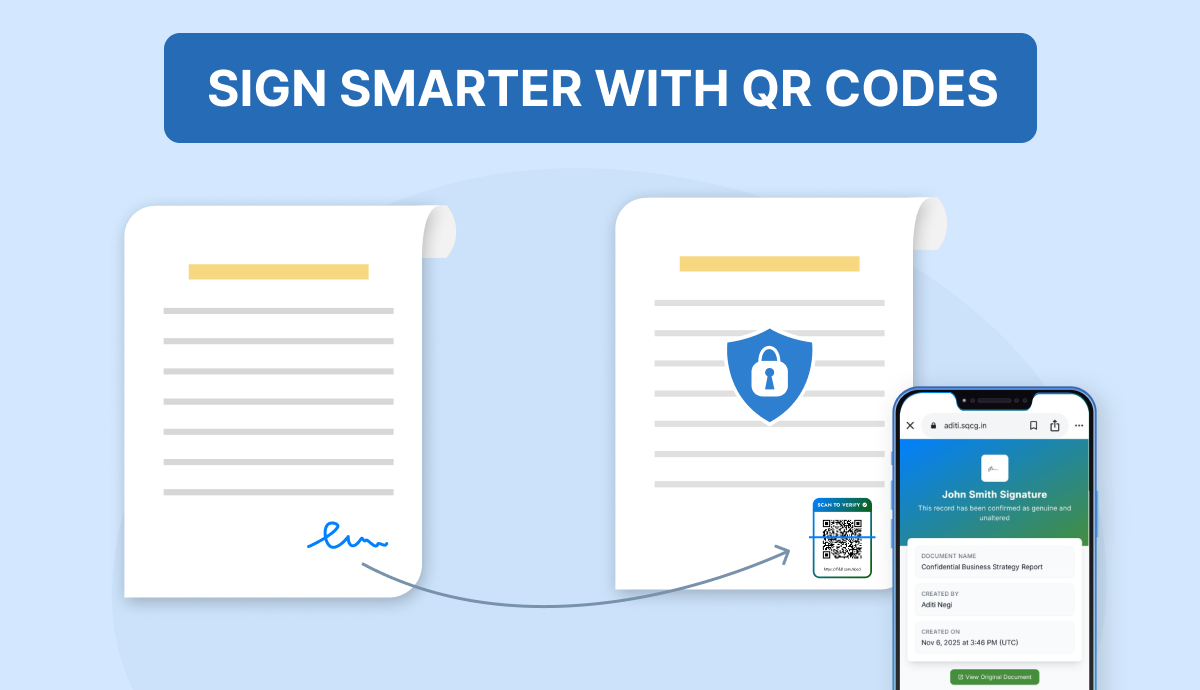
- A QR Code signature uses a scannable QR Code to verify who signed a document and when.
- A free QR Code signature generator lets you create secure signatures that anyone can scan and verify instantly.
- Each QR Code connects to a verification page showing signer details, timestamp, and document status.
- QR Code signatures can be added to PDFs, certificates, invoices, and other documents for quick authenticity checks.
- Verified QR Codes ensure tamper-proof validation, while basic ones only display stored information and lack security.
Signatures are going digital. What once needed pen and paper now happens with a quick scan.
Businesses everywhere are moving to digital tools. A QR Code signature helps verify documents instantly. Anyone can scan the code to confirm a document’s authenticity.
The global digital signage market was valued at USD 20.1 billion in 2024. It’s expected to grow to USD 27.3 billion by 2029. This growth shows how fast visual and digital solutions are becoming part of daily work.
Digital signatures are following the same path. They’re faster, safer, and easier to manage.
A free QR Code signature generator lets you create secure, scannable signatures in seconds. It saves time, builds trust, and fits modern workflows.
Let’s begin by understanding what a QR Code signature is.
A. What Is a Signature QR Code?
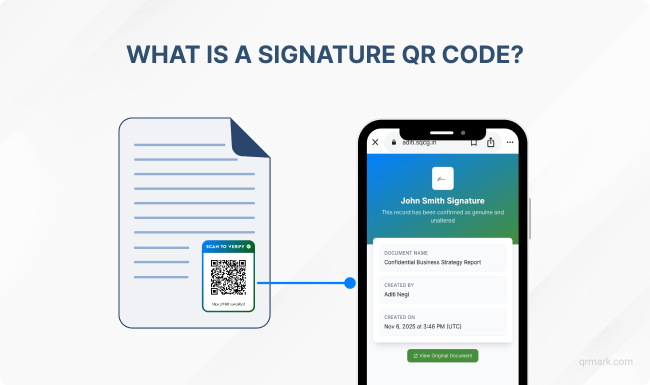
A QR Code signature is a digital signature linked to a scannable QR Code. It helps verify the signer’s identity and confirm that a document hasn’t been changed after signing.
Anyone can scan it with a phone to instantly view verified signing details. It’s one of the simplest ways to add trust to digital files.
From certificates and contracts to invoices and letters, QR Code signatures prevent forgery while keeping verification fast and simple.
What Information does It Encode?
A QR Code signature can carry more than just a name or link. Depending on the setup, it may include:
- The signer’s name, designation, or organization
- A signature image or digital certificate ID
- The signing date and timestamp
- A document reference or unique ID number
- A secure verification link
- Encrypted data or a digital hash for tamper detection (a digital hash is a unique code that changes if the document is edited, helping detect any alteration)
All these details make it easier to confirm who signed the document and whether it’s genuine.
Types of QR Code Signatures and How They Work
1. QR Code as a Signature Substitute
In this format, the QR Code itself acts as a digital signature. It contains details such as the signer’s name, date, and a unique document ID.
When scanned, the QR Code directs users to a verification page that confirms the signer’s identity and validates the document.
Platforms like QR Mark use encrypted systems to store verification details securely.
Even if the document is shared, printed, or downloaded, the QR Code still links to an authentic record, keeping verification valid.
This provides a reliable way to prove authenticity, with no complex setup required.
Note: A “secure record” is a verified database entry that can’t be changed or altered.
2. QR Code Containing a Handwritten or Electronic Signature
This version focuses more on convenience than security. The QR Code may store an image of a handwritten signature, a link to a digital signature, or even a scanned copy of a signed page.
It’s quick to create and easy to share, but lacks built-in verification. Anyone could copy or reuse it since it doesn’t prove who actually signed the document.
It’s suitable for personal or informal use, but not for legal, academic, or business documents.
B. How to Create a QR Code signature for Free
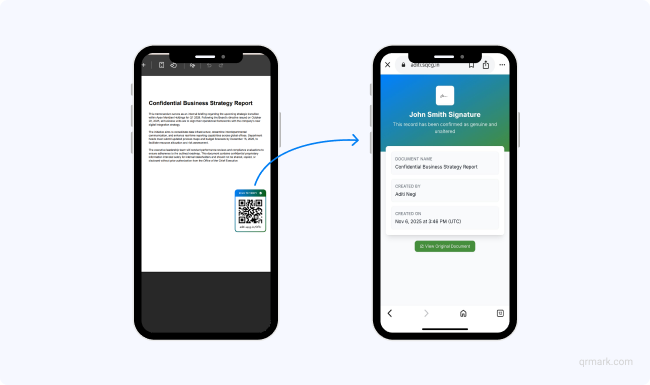
In this example, we’ll be using QR Mark because it offers a straightforward process to verify QR Code signatures.
QR Mark also offers 3 free verifications each month, so you can easily try it out without any cost.
A verified QR Code signature links your document to a secure verification page. When someone scans the QR Code, they can instantly see who signed the document, when it was signed, and whether it’s authentic.
Once created, this record cannot be changed or altered, which ensures your document remains genuine.
Here’s how you can create one step by step:
- Go to qrmark.com and log in or create an account.
- In the dashboard, open Settings and click Add Custom Domain.
Note: A custom domain lets you host the verification page under your own domain name. This adds credibility and keeps your digital identity consistent.
- Go to the Verifications tab and click Create Verification.
- Upload your document (PDF format, up to 25 MB).
- Choose your custom domain from the list.
- Add a landing page template, if you’ve already created one.
- Give your document a name, then select the placement for the QR Code, on the current page or on all pages.
- Click Generate Verification Image to create your QR Code.
- Move the QR Code to the desired location on the document and click Confirm Placement.
- Finally, click Download to save your verified document with the QR Code embedded.
When scanned, the document’s security QR Code opens a verification page showing the signer’s details and document information.
The data on this page is locked from editing, ensuring transparency and trust.
Adding a Signature Image to the Verification Page
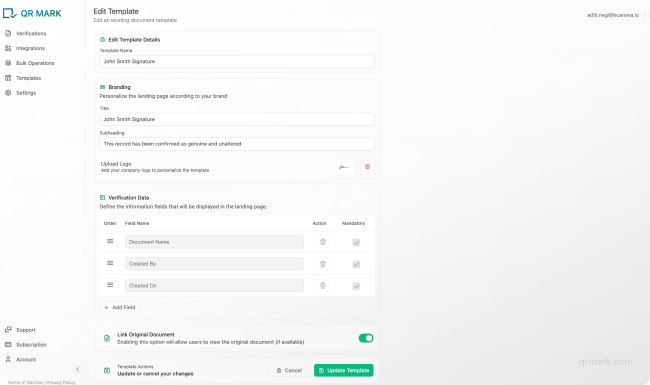
If you’d like your verification page to also show an image of your signature, you can create a custom template for that.
- Go to Templates and click Create Template.
- Give your template a name.
- Under the Branding section, add a title such as John’s Digital Signature or Verified by John Smith.
- Upload the image of your signature.
- In the Verification Data section, you’ll find fields like Document Name, Created By, and Created On. These are fixed since they’re required for verification.
- You can add more fields if needed, for example, Department, Document Type, etc.
- Rearrange the fields to decide what appears first on the verification page.
- Enable or disable the Link Original Document option if you’d like people to access the original file for additional verification.
- Once done, click Save Template.
When you create a new verification, use this template to include your signature image and any extra details you want to show. This gives your verification page a professional and personalized look.
Note: If you prefer adding a verified QR Code signature directly while creating your document, you can use the QR Mark Add-on for Google Workspace or Microsoft Office. It allows you to generate verified QR Codes and place them right inside Google Docs, Sheets, or Slides. You can also use it in Microsoft Word, Excel, and PowerPoint.
C. Is a Free QR Code Signature Generator Safe to Use?
A free QR Code signature generator is safe to use only if it meets strong security standards. Since you’re uploading important documents, it’s essential to ensure the platform protects your data and verification records.
Even if it’s a free platform, it should have these:
- ISO 27001:2022 Certified – ensures strong information security management.
- GDPR Compliant – guarantees your personal and document data is handled responsibly.
- SOC II Certified – confirms that data security, availability, and confidentiality controls are in place.
The platform should use HTTPS encryption to secure communication between the user and the server. It should also handle document data transparently and securely.
D. What Documents Can You Verify Using a QR Code signature?
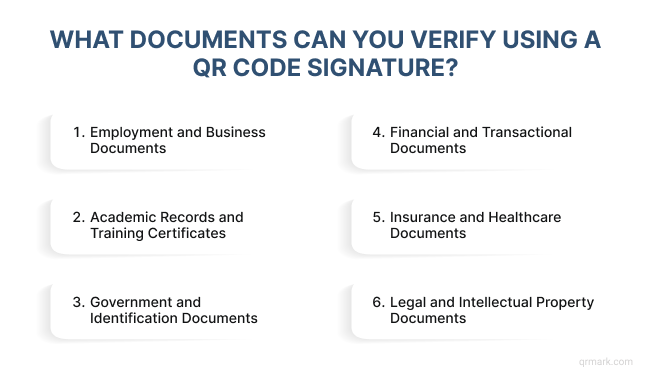
1. Employment and Business Documents:
Offer letters, contracts, proposals, and quotes can all include QR Code signatures.
This ensures each document comes from a verified source. It also confirms the file hasn’t been changed after signing.
Employers, employees, and clients can scan the QR Code to check the signer’s details and confirm authenticity within seconds.
2. Academic Records and Training Certificates:
Schools, universities, and training institutions can attach QR Code signatures to certificates, diplomas, and transcripts.
It displays the student’s details, issuing authority, and certification date. This removes the need for manual verification.
For example, CBSE has issued about 12 crore digitally signed, QR-coded academic documents. This makes verification easy for students and employers online.
3. Government and Identification Documents:
Official IDs, licenses, permits, and registration certificates can include a QR Code signature. This helps confirm their validity.
Scanning the code instantly verifies the issuing department. It also helps prevent forgery or duplication.
4. Financial and Transactional Documents:
Invoices, warranty cards, and payment receipts can all carry a QR Code signature for instant validation.
This allows both businesses and customers to confirm that details match official records. It also ensures the document remains unaltered.
Recent reports show that bank statements alone make up about 59% of all detected fraudulent documents.
5. Insurance and Healthcare Documents:
Insurance policies, claim forms, medical certificates, and prescriptions can also use QR Code verification. It helps protect sensitive data.
It also ensures the information shown is accurate and issued by the correct organization.
6. Legal and Intellectual Property Documents:
Agreements, NDAs, copyright declarations, and certificates of authentication can include QR Code signatures.
Artists, creators, and legal professionals can also add them to artwork verification documents. This helps confirm ownership and prove the authenticity of creative assets.
E. Why Should You Use a QR Code Signature Generator for Free?
Using a free QR Code signature generator isn’t just about convenience. It also improves the way documents are verified and trusted in a digital environment.
Here are some key advantages that make it worth considering:
1. Verifiable Authenticity
A QR Code signature links to a secure verification page where anyone can confirm who signed the document and when. This page acts as a digital proof of authenticity that cannot be altered or matched to any other document once created.
Each QR Code also carries encrypted verification data. If a document is edited or replaced, the verification record won’t match, instantly exposing tampering.
Using a custom domain further protects against misuse by ensuring verification links are unique to your organization and can’t be copied or replicated.
2. Easy Access and Scalability
Recipients don’t need special software, scanning the QR Code with a smartphone is enough.
It’s a scalable solution for organizations that handle multiple verifications every day.
3. Cost Efficiency
If you only have a few documents to verify each month, a free QR Code signature generator is often enough. It provides secure verification without additional costs or complex setup.
And even if you need to scale and upgrade to a paid plan, it’s still far more affordable than most traditional e-signature or verification platforms.
4. Compatibility Across Platforms
Generated QR Codes can be added to PDFs, Word documents, PowerPoint presentations, and even printed materials. This flexibility means you can maintain the same verification standard across all document types.
F. Limitations of QR Code Signature Generator for Free
Free QR Code signature generators are a great way to start verifying documents digitally.
However, there are a few limitations to keep in mind before relying on them for regular or large-scale use:
1. Limited Verifications per Month
Most free tools allow only a certain number of verifications each month. This works well for individuals or small teams.
However, it may not meet the needs of organizations that handle frequent or bulk document verification.
2. Dependency on Internet Connectivity
Verification takes place online. Both the sender and the recipient need an active internet connection to access the verification page.
This requirement can be restrictive in offline or high-security environments.
3. Fewer Customization Features
Free plans often have limited options for customization. Features like branded landing pages, advanced templates, or multiple custom domains are usually available only in paid plans.
4. Risk of Forgery with Non-Verifiable QR Codes
If you use a basic (non-verifiable) QR Code, it can be easily copied or forged. Regular QR Codes simply store static information and don’t link to a secure verification page.
Without encryption or verification records, anyone can copy the code. They can then attach it to another document to make it look authentic.
G. Final Thoughts
The idea isn’t to replace signatures, it’s to make them easier, more secure, and simpler to trust.
A QR Code signature turns a traditional mark into something verifiable, shareable, and far harder to fake.
It gives every signed document a digital layer of proof that moves with it, wherever it’s shared. In an age where trust depends on transparency, that shift feels less like a habit change and more like progress.
Frequently Asked Questions (FAQs)
1. How to create a QR Code for a signature?
You can create a QR Code signature using QR Mark. Simply log in > go to Verifications > click on create verification > upload your PDF (up to 25 MB) > and generate a verification QR Code.
Once it’s created, you can place it on your document, adjust its position, and download the verified file. When scanned, the QR Code opens a secure verification page showing who signed the document and when it was verified.
2. How to create a scan of your signature?
Write your signature neatly on white paper using a dark pen. Then either scan it or take a clear, well lit photo.
Crop the image to remove extra space and save it as a PNG file (preferably with a transparent background).
You can then upload it to digital documents or to your QR Code verification page as part of your branded signature template.
3. How do I add a QR Code to my email signature?
First, create a QR Code that links to your website, portfolio, contact details, or a professional profile. Download the QR Code image.
Then:
- In Gmail, go to Settings → See all settings → General → Signature. Click Insert Image and upload your QR Code.
- In Outlook, go to File → Options → Mail → Signatures, then use the image tool to insert your QR Code.
You can also hyperlink the QR Code so recipients can click or scan it to visit your chosen link instantly. It’s a simple way to make your email signature interactive and more informative.
4. Can I use QR Code signatures for official documents?
Yes, especially when the QR Code links to a verifiable record. Many organizations now accept QR Code signatures for verifying contracts, certificates, and reports.
For legally binding documents, always check local e-signature laws. Make sure your verification method meets all compliance requirements.
5. What’s the difference between a QR Code signature and an e-signature?
An e-signature captures your intent; you type or draw your name to show approval. A QR Code signature focuses on verification.
It connects the document to a secure page that proves who signed it, when, and whether it’s been changed. In short, e-signatures show consent; QR Code signatures confirm authenticity.
6. Can I create a QR Code for handwritten signatures?
Yes. You can generate a QR Code that contains or links to an image of your handwritten signature.
However, this type of QR Code isn’t verifiable; anyone could copy or reuse it. For important or official documents, it’s better to use a verifiable QR Code signature. It should include tamper-proof verification along with a handwritten signature.
