

TL;DR
- A secure Google Sheet is about more than permissions and protected cells.
- Google’s tools control access, but they don’t stop copying, screenshots, or reused files.
- Sensitive data like payroll, IDs, and health records should never be loosely shared.
- Traditional protections reduce risk but don’t prevent document misuse or fraud.
- Some teams add QR-based verification to confirm whether a sheet is authentic and approved.
- Security improves when you combine access control with document verification.
Google Sheets is one of the most widely used tools for storing and sharing business data. It’s fast, familiar, and easy to collaborate on. But convenience comes with a quiet risk.
Many teams assume that because a file lives inside Google’s ecosystem, it’s automatically safe. In reality, a secure Google Sheet depends less on Google’s infrastructure and more on how people share, copy, and reuse that data every day.
Client details, payroll information, internal budgets, login credentials, and sensitive records often end up in spreadsheets. When access is misconfigured or links are shared too freely, that data can spread far beyond its intended audience sometimes without anyone noticing until it’s too late.
This guide breaks down:
- why securing Google Sheets actually matters,
- where Google’s built-in protections help (and where they don’t), and
- how modern teams add an extra layer of trust by verifying spreadsheets, not just sharing them.
If you rely on Google Sheets for real work, this is what you need to know to keep them truly secure.
A.Why secure Google Sheets?
Securing google sheets is important because they hold private information, and if the wrong person sees it, real harm can happen.
People use Google Sheets to store important things like client names, employee salaries, money plans, passwords, formulas, or even health records. If this kind of data leaks, it can hurt people and businesses.
Many data breaches happen because personal or employee information is exposed by mistake. One leak can cost a company a lot of money and trust.
1. What Happens If a Google Sheet Is Not Secured Properly?
If a google sheet is not secured properly, then anyone who gets access can see it, copy it, or change it.
If a sheet isn’t locked down, someone with the link or someone who steals access can open it. Because Google Sheets lives in the cloud, it’s also tied to your Google account.
If your account is hacked through phishing or a stolen password, the attacker can see your emails, files, and spreadsheets.
Even without hacking, simple mistakes cause leaks. Sharing a file with the wrong email, turning on public link access, or giving edit rights too freely can expose data.
Editors can download files or make copies. Even viewers can often duplicate a sheet using “Make a copy.”
Once someone can see data in a Google Sheet, Google cannot fully stop them from copying it. Even if download or print options are turned off, people can still copy visible cells, retype the data, or take screenshots.
These settings slow people down, but they don’t fully protect the data.
2. What Kind of Data Should Never Be Left Unprotected?
Any data or information that is personal, confidential, or sensitive must be protected at all times.
Some information should never be left open or freely shared in a Google Sheet especially at work.
This matters for
- employees,
- managers,
- founders,
- finance teams,
- HR teams, IT teams, and
- anyone who works with company or customer data.
Important information to secure:
- Social Security numbers or national ID numbers
- Health or medical records
- Bank account or credit card details
- Passwords or login information
- Payroll and salary data
- Private business plans, contracts, or trade secrets
3. Who should Protect their google sheets?
If you work in:
- HR
- Finance
- Accounting
- Operations
- IT
- Security, or
- Leadership
You’re likely to handle this kind of data. But even team leads, analysts, and admins can accidentally expose it if they share a sheet the wrong way.
In many countries, laws make it illegal to expose this information. Even details that seem small like employee phone numbers or home addresses are considered sensitive.
A simple rule to remember is this:
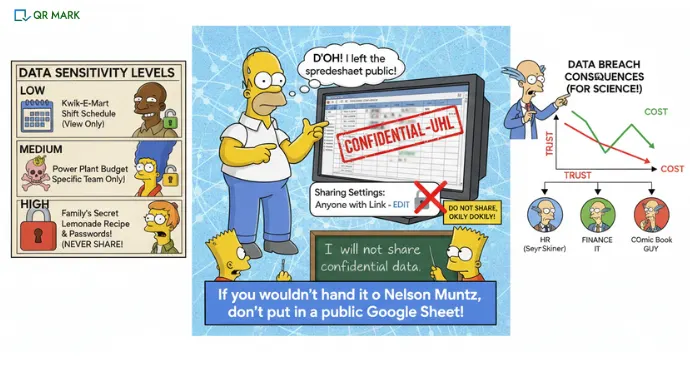
If you wouldn’t hand this information to a stranger, don’t leave it open in a Google Sheet.
3. How Do You Decide How Secure a Sheet Needs to Be?
To secure a sheet you first need to figure out how sensitive your data is. A helpful way to decide is to group spreadsheets into three levels:
I.Low sensitivity:
Information that wouldn’t cause harm if shared, like public schedules or basic lists. These can sometimes be shared more , usually as view-only.
II.Medium sensitivity:
Internal business data like employee lists, internal budgets, or team planning. Share these only with specific people or groups.
III.High sensitivity:
Payroll, banking info, personal IDs, health data, or regulated information. These should never be shared publicly and should be controlled or kept in separate files.
As sensitivity goes up, sharing should become more limited.
Now that we are done with the basic hows and whats, let’s go deeper into understanding how to protect google sheet.
B. How to secure google sheet using Traditional methods?
Google gives you a few basic tools to help protect your spreadsheets. These tools are helpful but they are not perfect.
Think of them as locks on a door: they slow people down, but they don’t make the room impossible to enter.
Below are some methods to secure google sheets, what they do, and how to use them.
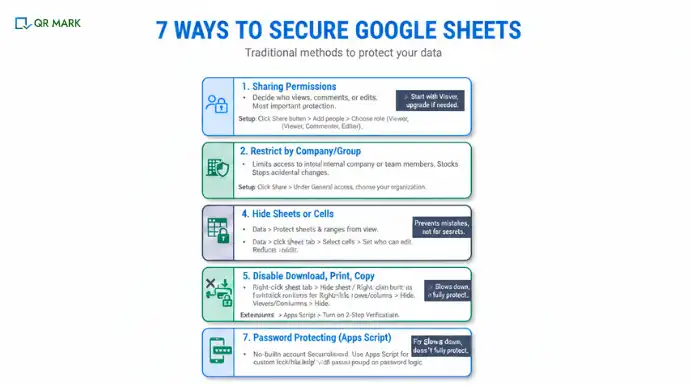
1. Sharing Permissions
What it does:
You decide who can open the sheet and what they can do—view, comment, or edit.
Why it helps:
This is the most important protection. Fewer people with access means fewer chances for mistakes.
What it doesn’t stop:
People with access can still copy what they see.
How to set it up:
- Open your Google Sheet
- Click the Share button (top right)
- Add only the people who really need access
- Choose:
- Viewer if they only need to see data
- Commenter if they need to leave notes
- Editor only if they must change data
👉 Tip: Always start with Viewer, then upgrade access only if needed.
2.Restrict by Company or Group (Google Workspace)
What it does:
Limits access to people inside your company or a specific team.
Why it helps:
It blocks outsiders from opening the file.
What it doesn’t stop:
It doesn’t prevent internal sharing mistakes.
How to set it up:
- Click Share
- Under General access, choose your organization
- Turn off “Anyone with the link” if it’s enabled
👉 Best for internal company files that should never go public.
3. Protect Sheets and Ranges
What it does:
Locks parts of a sheet so people can’t edit them.
Why it helps:
Prevents accidents like deleting formulas or key numbers.
What it doesn’t stop:
People can still copy, download, or export the data.
How to set it up:
- Click Data in the top menu
- Select Protect sheets and ranges
- Choose the cells or sheet to protect
- Set who can edit
👉 Use this to prevent mistakes, not to hide secrets.
4.Hide Sheets or Cells
What it does:
Hides parts of the spreadsheet from view.
Why it helps:
Reduces clutter and keeps the sheet cleaner.
What it doesn’t stop:
Anyone with access can unhide the data or see it in a copied file.
How to set it up:
- Right-click a sheet tab
- Click Hide sheet
or- Select columns or rows
- Right-click → Hide
👉 Hiding is for convenience, not security.
5.Disable Download, Print, and Copy
What it does:
Removes download, print, and copy buttons for viewers and commenters.
Why it helps:
Stops casual copying with one click.
What it doesn’t stop:
Screenshots, manual copying, or editors exporting files.
How to set it up:
- Click Share
- Click the gear icon (top right of the share box)
- Uncheck:
- “Viewers and commenters can download, print, and copy”
👉 This slows people down, but it doesn’t fully protect data.
6.Two-Factor Authentication (2FA)
What it does:
Adds a second step when logging into a Google account.
Why it helps:
Even if someone steals your password, they can’t log in without the second code.
What it doesn’t stop:
People who already have access can still view or copy the sheet.
How to set it up:
- Go to your Google Account settings
- Open Security
- Turn on 2-Step Verification
- Choose a phone code, app, or security key
👉 This protects all your Google data, not just Sheets.
7.Password Protecting Google Sheets
One of the most common questions people ask is: “Can I put a password on a Google Sheet?”
No, Google Sheets does not have a built-in way to password-protect a file with one click. There is no official option in Google Sheets that lets you lock a sheet with a password or encrypt it like you can in Excel. Access is controlled by Google accounts, not file passwords.
How This Method Works (High Level)
Here’s the basic idea:
- Open your Google Sheet
- Click Extensions
- Select Apps Scrip
- Create a script that:
- Shows a popup asking for a password
- If the password is correct, the script unhides or unlocks certain cells
- If the password is wrong, the data stays hidden or locked
- Test the script
- Share the sheet and script with users who need access
This approach can hide or reveal content based on a password.
C.How Secure Are These Traditional Methods?
| Security Method | What It Helps With | What It Does NOT Protect Against |
| Sharing Permissions | Lets you choose who can view, comment, or edit a sheet | People with access can still copy, download, or reshare the file; links can be forwarded by mistake |
| Domain Restriction | Blocks access from outside your company | Anyone inside the domain with the link can still share it; internal mistakes still happen |
| Protected Sheets & Ranges | Stops users from editing certain cells or formulas | Does not stop copying, exporting, or making full copies of the sheet |
| Disable Download / Print / Copy | Removes obvious download and print buttons | Screenshots, manual copying, and editor exports are still possible |
| Hidden Sheets or Columns | Keeps sheets tidy and reduces clutter | Hidden data can be revealed or seen in copied files |
| Two-Factor Authentication (2FA) | Protects Google accounts from password theft | Does not protect individual sheets or stop collaborators from copying data |
| Password Protection (Workarounds) | May slow down casual users | No real password protection exists; scripts and add-ons can fail or be bypassed |
Google Sheets security tools help control access, but they don’t stop files from being copied or reused. When spreadsheets move around like this, it can be hard to know which version is the real one
This is how document fraud can happen. To lower this risk, some teams focus on verifying spreadsheets, not just sharing them. One simple way to do this is with QR codes that help confirm whether a sheet is authentic.
With the limits of traditional methods in mind, let’s look at a newer angle: QR codes for sheet security.

D.How to Use QR Codes for Document Security
QR codes are often used for menus, tickets, or ads but they can also help with document security when used the right way.
A QR code is a picture that holds a link or small piece of information. When you scan it with a phone camera, it opens that link. For Google Sheets, QR codes do not lock or encrypt the sheet by themselves. Instead, they change how people reach the sheet.
Think of QR codes as a different doorway not a stronger lock.
1.How Can QR Codes Help Secure a Google Sheet?
One simple way to use QR codes is to create a code that points to your Google Sheet (or to a secure page that leads to it.. Instead of emailing or pasting a long link, you share the QR code image.
Only people who scan the code can reach the sheet.
On its own, this works just like a link. If the person scanning the code already has permission, the sheet opens. If they don’t, Google still blocks access.
So the QR code does not replace Google’s security but it can reduce sharing mistakes.
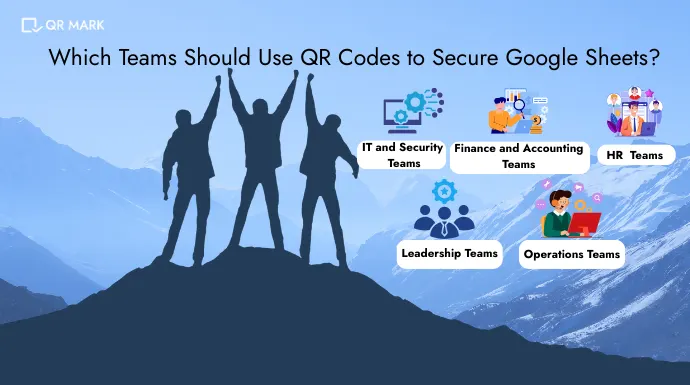
2.How Different Teams Can Use QR-Based Access For Sheet Authentication?
QR-based access supports QR code document authentication by helping teams confirm that a Google Sheet is real, original, and approved, not copied, altered, or replaced. This is especially useful for preventing document counterfeiting, where fake or modified spreadsheets are shared as if they were legitimate.
I.Finance & Accounting Teams
How they use it:
QR codes can be placed on financial reports, invoices, or approval documents. When scanned, the QR directs users to a verification page or the official Google Sheet.
How this prevents document counterfeiting:
- Fake spreadsheets won’t match the verified QR record
- Modified copies won’t show the correct document details
- Only the original, approved sheet can be confirmed
Benefit: Reduces the risk of payments or approvals based on fake or altered documents.
II.HR & People Operations Teams
How they use it:
HR can attach QR codes to employee records, policy documents, or audit files that link to verified sheets.
How this prevents document counterfeiting:
- Employees can verify that a document is official
- Old or altered copies fail verification
- Reduces misuse of fake HR forms or policies
Benefit:Protects employees and the company from fraudulent or outdated HR documents.
III.Operations & Admin Teams
How they use it:
QR codes can be displayed in controlled areas (offices, workstations) to access tracking or planning sheets.
How this prevents document counterfeiting:
- Teams can confirm the sheet hasn’t been replaced
- Fake versions shared through chat or email won’t verify
- Prevents confusion caused by copied files
Benefit: Ensures teams always use the correct operational document.
IV.IT & Security Teams
How they use it:
IT teams can use QR code document authentication as a verification layer before allowing access to shared sheets.
How this prevents document counterfeiting:
- Provides a way to check document authenticity
- Makes it harder for fake or spoofed sheets to pass as real
- Adds verification without changing Google permissions
Benefit: Reduces document fraud risks while keeping systems simple.
V.Leadership & Management
How they use it:
Leaders can share QR codes with reports or dashboards instead of raw links.
How this prevents document counterfeiting:
- Confirms leadership is viewing the approved version
- Prevents decisions based on altered data
- Builds trust in shared documents
Benefit: Improves confidence in business data and reports.
E.Security Risks, Compliance, and Misconceptions when Securing a google sheet
Even when you are careful, Google Sheets can still be misused if they are not managed the right way. Let’s look at the main security risks, legal concerns, and common misunderstandings.
1.Can Google Sheets Be Hacked or Misused?
Yes. No system is 100% safe. Google’s cloud systems are very secure, but people’s accounts are often the weak point. If someone steals your Google login through phishing or a fake email, they can see your emails, files, and spreadsheets.
There is also insider risk. A person who already has edit access can copy data from a protected sheet and share it elsewhere. Protection settings stop edits—but not copying.
Third-party add-ons can be risky too. If an add-on has access to your files and becomes unsafe, it could quietly take data without you noticing.
So while Google Sheets is well protected on the technical side, it still needs careful handling. It should be treated as something to defend—not as a perfect safe.
2.Is Google Sheets HIPAA Compliant?
Not by default. HIPAA is a U.S. law that protects health and patient information. Google Sheets can only be used for health data if your organization:
- Uses an approved Google Workspace plan
- Signs a Business Associate Agreement (BAA) with Google
- Sets up strong security controls like 2-factor authentication
Without these steps, storing patient data in Google Sheets would break HIPAA rules. Google provides tools, but your organization must set them up correctly.
3. Is Google Sheets GDPR Compliant?
Not automatically. GDPR is a European law that protects personal data. Google Workspace supports GDPR, but your company is still responsible for following the rules.
This means your organization must:
- Collect data lawfully
- Protect personal data
- Delete data when required
- Respond to access requests
Google provides secure systems and contracts, but it is your job to use them properly.
4.Who Is Responsible for Compliance?
You are. Google acts as a service provider, but your organization controls the data. This means:
- You decide who gets access
- You train employees
- You check sharing settings
- You make sure rules are followed
Google gives you the tools but compliance depends on how your team uses them.
These risks show why permissions alone are not always enough. Even with strong sharing settings, spreadsheets can still be copied, altered, or reused in the wrong way. That’s why some teams go beyond access control and focus on verification, making sure the sheet being used is real, approved, and trusted before relying on it.
Now that you understand why Google Sheets need protection, where traditional security tools help, and where their limits are, the next step is putting that knowledge into practice.
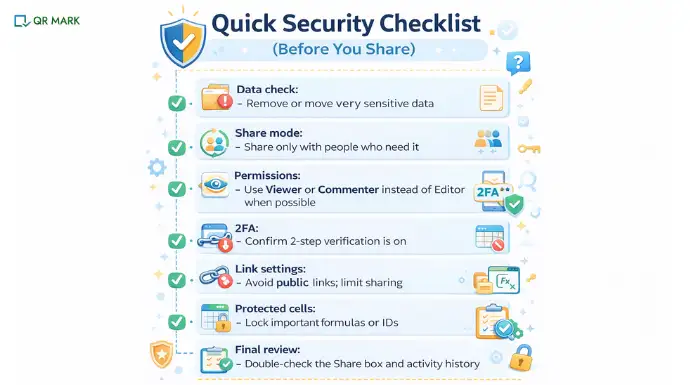
Below is a practical checklist you can use every time you share a Google Sheet to make sure your data is protected.
F.What to Check Before Sharing a Google Sheet
1. Review What’s in the Sheet
Look through the sheet and remove anything the other person doesn’t need to see.
If there is very sensitive data, move it to another file or remove it completely.
Ask yourself: Do they really need this information?
2. Check Sharing Settings
Make sure the sheet is shared only with the people or groups you want.
3. Set the Right Permission Level
Only give Editor access if someone must change the sheet.
- Use Viewer if they only need to see data
- Use Commenter if they need to leave notes
Fewer editors mean fewer mistakes.
4. Protect Important Cells
If some cells should never change (like formulas or IDs), lock them. This helps prevent accidents, but remember, it’s not full security.
5. Disable Copying (If Needed)
If you’re sharing outside your organization, you can hide download and print options. This slows casual copying but does not fully stop it.
6. Use Strong Login Security
Make sure you and anyone accessing the sheet uses strong Google login security.
- Turn on 2-step verification (2FA)
- Use security keys for high-risk accounts if possible
This helps protect against stolen passwords.
7. Check Activity and Changes
For important sheets, take a quick look at:
- Last edit by
- Version history
In large organizations, admins can also review Drive audit logs to see who accessed or shared files.
Final Thoughts
Securing a Google Sheet is not a one-time setting it’s an ongoing decision. Every time a file is shared, copied, or reused, the risk changes. Google’s permission controls, protected ranges, and login security are important, but they mainly answer one question: Who can open this file?
They don’t always answer a more critical one: Is this the real, approved version?
As spreadsheets move across teams, emails, and devices, copies start to look identical. At that point, security isn’t just about blocking access, it’s about trust. Knowing that the data you’re viewing hasn’t been altered, replaced, or reused incorrectly matters just as much as who can edit it.
That’s why some organizations go beyond traditional controls and focus on verification. By linking Google Sheets to QR-based authentication or verification records, teams can confirm that a document is genuine before relying on it for decisions, approvals, or payments.
If your Google Sheets influence real outcomes, money, people, or compliance then securing them isn’t optional. The safest approach combines smart sharing, strong account security, and a way to verify that the sheet in front of you is the one you’re meant to trust.
FAQs
1. How to secure google sheet with password?
No, Google Sheets does not support built-in password protection. There is no native option to lock a Google Sheet with a password or encrypt it like Microsoft Excel. Access to Google Sheets is controlled through Google account permissions, not passwords.
Users can only view or edit a sheet if the file owner grants access via email. This means anyone signed into an authorized Google account can open the sheet without entering a separate password.
If you need stronger control, teams must rely on sharing permissions, protected ranges, or use QR Codes to secure Google Sheet.
2. Are Google Sheets secure?
Yes, Google Sheets is secure for most personal and business use. It uses encryption to protect data and controls access through Google account permissions.
However, Google Sheets does not offer built-in password protection. Security largely depends on how the file is shared, who has access, and what permission levels are assigned.
When used correctly with restricted sharing, proper access controls or by using external methods like QR Codes for securing google sheet, they can be a secure option for teams.
3. Can anyone view my Google Sheets?
No, not everyone can view your Google Sheets by default. Only people you explicitly share the file with or anyone who has access through a shared link you enable can view it. However, if a Google Sheet is set to “Anyone with the link”, then anyone who receives that link can open the file without needing approval.
To keep a Google Sheet private, ensure sharing is restricted to specific email addresses and avoid public or open-access links.
4. How do I check who has access to my Google Sheets?
To check who has access to your Google Sheet, open the file and click the Share button in the top-right corner. A panel will appear showing all email addresses that currently have access and their permission level (Viewer, Commenter, or Editor).
You can also see whether the sheet is shared via a link, such as “Anyone with the link”, and change or remove access at any time. Reviewing this list regularly helps ensure only the right people can view or edit your Google Sheets.
5. Is Google Sheets safe for managing Finances?
Yes, Google Sheets is secure for tracking your finances because it is protected by Google’s server-level security. Unless you have shared your Google Sheet with someone, no one can access your files without logging in using your Gmail account username and password.
Google Sheets uses encrypted connections and account-based access controls, which means your financial data remains private as long as your Google account is secure and sharing settings are managed carefully.
For added safety, avoid public links and regularly review who has access to your sheets.
