


TL;DR
Word documents often contain sensitive and high-value information. Due to this they are a target for misuse, leaks, and fraud. You can improve security by using Word’s built-in tools like password encryption, editing restrictions, and removing hidden data. However, these features mainly control access; they don’t fully prevent copying, sharing, or document forgery. To go further, organizations are adopting document authentication methods. Such methods include digital signatures and QR Code verification tools. Document protection is not about locking files. It is also about ensuring trust, integrity, and verifiability.
Many businesses and schools store private data in Word documents. Without protection, sensitive info can leak.
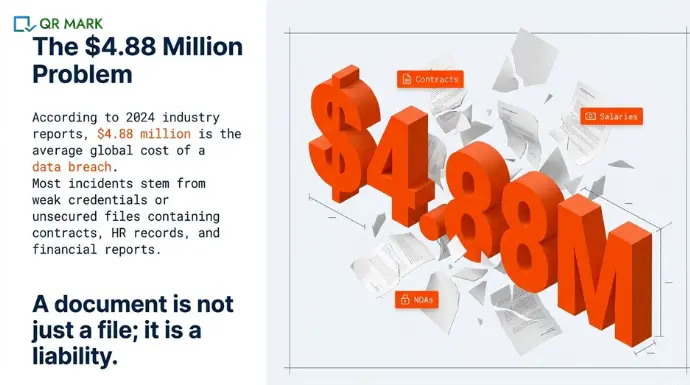
Data breaches are expensive. According to industry cybersecurity reports, the average global data breach cost reached $4.88 million in 2024, with most incidents involving weak or stolen credentials.
Therefore, it becomes crucial to secure word document. And in this article we will do exactly that.
In this article, you’ll learn:
- How to use Word’s built-in security features like encryption and editing restrictions,
- Understand the limits of traditional protection methods, and
- Explore modern approaches that help verify a document’s authenticity
This guide is for professionals who handle important documents in their daily work. If you belong to HR , legal and compliance staff, educators, administrators, and business owners, this one’s for you.
A.What does it mean to secure a word document and why does it matter?
Securing Word document means putting controls in place so the file can’t be opened, changed, misused, or faked without you knowing.
A normal Word file is like data in a container. Anyone who gets a copy can open it, edit it, forward it, or alter details. Securing it adds layers that reduce those risks.
In practical terms, it usually involves four things:
- Controlling access – using encryption (a password to open) so only approved people can read it
- Controlling edits – limiting who can change the content
- Removing hidden data – making sure internal notes, comments, or revision history don’t leak
- Proving integrity – using a digital signature or qr based authentication method so people know the file hasn’t been altered
So instead of a loose file floating around, you have a document that is locked, controlled, and traceable.
1.Why it matters to secure word document?
Word documents often contain things like contracts, employee records, financial data, reports, or official letters. If those get misused, the impact can be serious.
Without security in word document:
- Someone can change numbers, dates, or terms
- A file can be forwarded beyond the intended audience
- Internal discussions or tracked changes can leak
- Fake versions of your document can circulate
With security in place:
- Only the right people can open it
- Edits are restricted or visible
- Sensitive background data is removed
- Any tampering becomes obvious
Now let us understand some of the ways to secure word document.
B. How to password protect word document?
Imagine you’ve created a word document that contains salary details for employees at your company. This isn’t something everyone should see. If you just email the file normally, anyone who opens it can read everything.
That’s where password protection comes in.
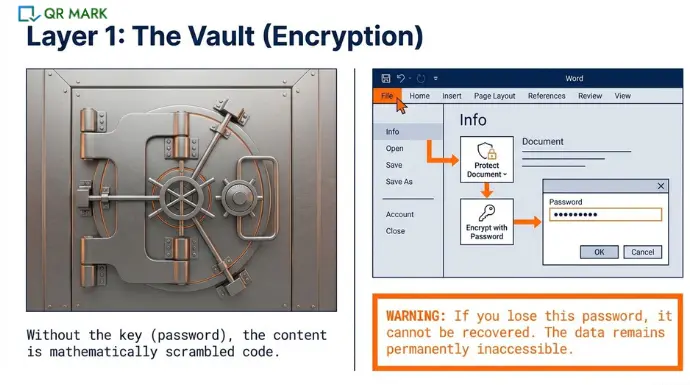
When you password protect Word document, Word doesn’t just “lock” it, it encrypts it. Encryption turns the content into unreadable data. Without the correct password, the file looks like meaningless code to a computer.
Example Scenario
Let’s say, You created a file named “Employee_Salaries_2026.docx” and want only your manager to open it
Here’s what you do:
- Open the document in Word.
- Click File → Info.
- Select Protect Document → Encrypt with Password.
- Enter a strong password like: SaL@ry#26Secure
- Click OK, confirm the password, and save the file.
What Happens Next? Look at the table below.
| Person | What happens when they open the file |
| Your manager (has the password) | Word asks for the password. They enter it, and the document opens normally. |
| Coworker (no password) | Word asks for the password. Since they don’t know it, the file stays locked and cannot be opened. |
| Hacker who steals the file | The file appears as encrypted data. Without the password, the content is unreadable and unusable. |
So the document is not hidden, it’s mathematically scrambled using strong encryption (AES-256 in modern Word versions).
C. How to restrict editing in a Word document(Read-Only Protection)
You can restrict editing in a word document to stop others from editing certain parts of your file. (for example, lock the main text but let users fill in blanks)
To understand this in better terms, let us assume you made a company policy in your word document and you want:
- Everyone to read it
- Some people to fill in their name and signature
- But no one to change the rules, headings, or wording
If you only password-protect the file, people can’t open it without the password but once opened, they could still edit everything. That’s risky.
Instead you can use Word’s Restrict Editing feature. To do that follow the steps below:
- In Word, click the Review tab and select Restrict Editing.
- In the pane that appears, check Allow only this type of editing in the document. Then choose No changes (Read only) from the list. This makes most of the document uneditable.
- If you want to allow edits in specific sections (like form fields or comments), use the Exceptions options. For each part of the doc you want to remain editable, select it and check Everyone or specific users under Exceptions.
- When done, click Yes, Start Enforcing Protection. Enter a password if you like (optional). Without that password, others cannot remove the protection.
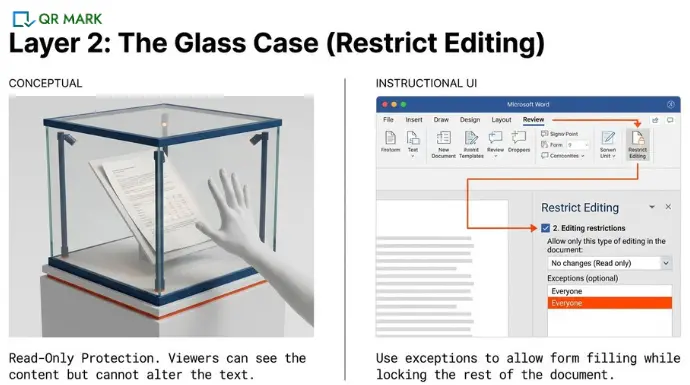
This turns your Word file into a mostly read-only document for anyone else. They can open and view it, but typing changes will be blocked except in the parts you allowed.
However, note that this isn’t encryption. It’s a password on editing, not on opening. If someone really wants to copy the text, they can still do so by other means.
Marking a document as Final or choosing Always Open Read-Only (under Protect Document) only warns or suggests.
It does not enforce security. Word’s “read-only” modes and restrict settings do not encrypt the file. They simply discourage changes,
and a determined user can disable these flags. For true security, combine editing restrictions with a password or encryption.
D. Can you prevent copying content or screenshots
No, MS Word cannot completely stop someone from copying or screenshotting your content once they open it.
To make copying harder: consider using Microsoft Information Rights Management (IRM).
IRM lets you label a document as view-only, and even disable printing or copying.
For example, you could set the file permission to “View only, do not copy or print.” This requires special setup in Microsoft 365 (your organization’s admin can configure IRM).
When in force, the receiver can see the document on screen but normal copy/paste and print functions are locked down.
If IRM isn’t available, another trick is to convert the Word file to a protected PDF.
You could also share the document through a secure portal (not email). For example, using SharePoint or a DMS that controls downloads. These platforms can disable download and add dynamic watermarks, so any leak can be traced.
E.Beyond passwords: Extra layers to secure word document
Password protection or editing restrictions are just step one, but more layers are wise, especially in businesses. It is better to be careful in advance. And to do that, here are some ways to add extra level of security:
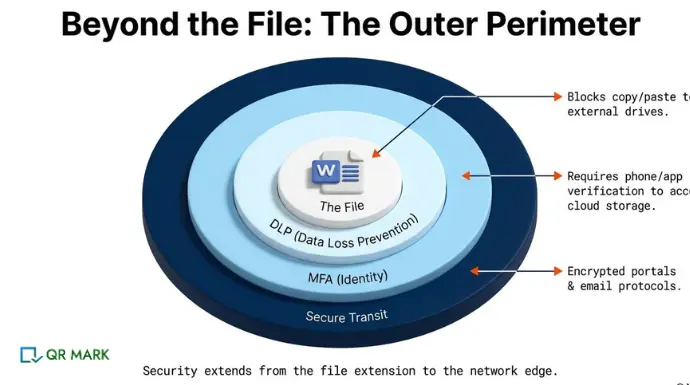
- One key layer is Multi-Factor Authentication (MFA). If your Word docs are in cloud storage (OneDrive, SharePoint), requiring MFA to log in means attackers need more than just a password to reach the files. It’s not about the file’s password, but the account access.
- Another layer is Data Loss Prevention (DLP) on endpoints. DLP software can watch all documents (including Word files) for sensitive content. They can also block copy/paste to external drives or emails. This won’t stop copying on the file itself, but it can prevent confidential text from being exfiltrated.
- Also, consider enterprise rights management. In Office 365, sensitivity labels (or Azure RMS) let you apply rules even if a file leaves the company. For example, “encrypt this file for this group, expire after 30 days, no re-share.” These are advanced options that live in the cloud.
- Finally, secure communication channels help. Instead of emailing protected docs, use secure email platforms that encrypt entire messages end-to-end, or enterprise messenger tools with file security. The fewer places the raw Word file travels, the safer.
In any case, remember that no measure is foolproof. The goal is to deter casual copying. Keep the document encrypted and only share with trusted users. Monitor access logs if possible. And always pair prevention with user education (tell recipients not to share or edit without permission).
Even with these protections in place, Word document security has limits. Understanding those limits is just as important as applying the settings.
F. What are the limitations of Word Document Security(What MS-Word Can’t do)
Word offers helpful protection tools, but they don’t make a document completely safe. These features control access and editing. These are a few limitations of a MS Word document. They don’t guarantee secrecy, authenticity, or trust.
Let’s look at where the limits show up.
1. Passwords Don’t Stop Copying
Consider this. You send a password protected Word file containing company financial projections to a partner. They enter the password and open the document, completely legitimate.
But after that? They can:
- Copy and paste the content into another file
- Take screenshots
- Print it
- Forward both the file and the password
Once the file is opened, Word cannot control what happens next. The protection only works before access, not after.
A password protects the door, but not what someone does once they’re inside the room.
2. Restricted Editing Doesn’t Prevent Content Theft
Let’s say you locked a proposal using Restrict Editing so no one can change the text.
A recipient still can:
- Select the content and copy it elsewhere
- Screenshot the document
- Recreate the content manually
So while your wording stays unchanged in that file, your information can still be duplicated outside it.
This protects document integrity, not information control.
3. Fake or Altered Word Documents Can Look Real
Now imagine you receive a Word document that looks official and it includes:
- Company logo
- Signature image
- Proper formatting
- Professional tone
It looks legitimate, but it could be fake. Word files are easy to duplicate and edit. Someone can:
- Copy a real document
- Change names, numbers, or terms
- Reuse logos and branding
Within minutes, a forged document can look identical to the original. Visual appearance doesn’t prove authenticity.
Even the email sender can be faked. A message might look like it came from your boss or a known company but was actually spoofed.
So the problem here isn’t editing, it’s trust. Word doesn’t prove a file is the original or that it came from who it claims.
4. Passwords Can Be Shared or Exposed
Security often fails because of human behavior, not technology.
People:
- Reuse passwords
- Share them casually
- Store them in emails or chats
- Write them down
Once multiple people know the password, the protection loses meaning. Word has no control over how passwords are handled outside the file.
5. No Built-In Way to Verify the “Real” Version
If two copies of a Word file exist:
- Which one is original?
- Which one was altered?
Word does not provide a built-in public verification system to detect tampering after the document is shared.
In Short: You’re protecting access, not proving legitimacy.
So far we have learned:
- How can you password protect word documents?
- How to set up editing restrictions in the word document?
- How to prevent copying or screenshots of word document?
This is where traditional document security reaches its limit. You can control who opens a file but not whether a version in circulation is genuine which is the main loophole in document fraud.
Modern ways to secure word document is now moving toward verification systems that allow anyone to confirm whether a document is authentic, untampered, and officially issued.
G. Why Document Authenticity Matters More Than File Locking?
Document Matters more than file locking because in many real situations, the key question is not “Who can open this?” but “Is this document genuine?”
This arises mostly in cases, when you are dealing with:
- Business proposal
- Company policy document
- Employment contract
- Offer letter
- Non-Disclosure Agreement (NDA)
- Legal notice
- Research paper
- Recommendation letter
- Budget proposal
- Invoice
In these cases, being able to detect tampering and confirm origin is more important than simply locking the file. Let’s focus on this new lens now – How to secure word document form tampering?
1. How to protect Word document from tampering
Sometimes the main concern isn’t who can open a document. It’s whether the document stays unchanged after you send it. Tamper protection focuses on integrity: making sure people can tell if a document has been altered.
There are two broad approaches used for this.
1. Digital Signatures
A digital signature works like an electronic seal. When applied to a Word document, it connects the file to the signer’s identity and locks the document’s contents. If anything in the file changes afterward, the signature becomes invalid.
In simple terms, it answers two questions:
- Who signed this document?
- Has it changed since it was signed?
Word includes a built-in option to add a digital signature.
To sign a Word file:
- Go to File > Info > Protect Document
- Choose Add a Digital Signature
- Follow the prompts and complete the signing process
- Save the document
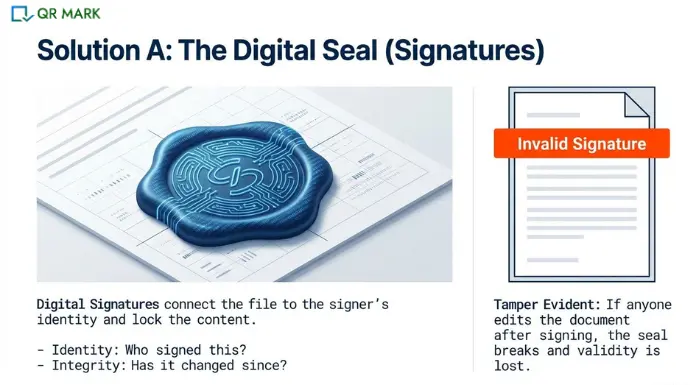
After signing, Word shows a signature indicator. If someone edits the document later, Word alerts the reader that the signature is no longer valid. This makes unauthorized changes visible instead of hidden.
Digital signatures are often used for documents where the exact wording matters. For example, agreements, formal letters, or official records.
2. QR Code Document Authentication
Another approach involves linking a document to an external verification record using a QR code. This method is known as QR Code document authentication. The QR code inside the document connects to an online entry that contains details about that specific file.
Instead of asking ‘Does this look real?’ organizations can ask ‘Does this verify?
When scanned, the system can check:
- The issue date
- The original issuer
- Whether the file is still valid or has been changed
This means verification happens outside the document itself, against a trusted source. If the file no longer matches the original record, the system can say it as: altered.
Instead of relying only on how the document looks, this method allows someone to confirm that the version they have matches the official one.
Unlike digital signatures, QR Code document Authentication is not present in MS Word. However, there are document security tools like QR Mark, which provide this functionality. So you don’t have to worry about using another software. You can access it directly and secure word document you are working on.

H.When does securing word document Makes Sense
Not every Word document needs heavy word document security. But when a file carries legal, financial, academic, or employment value, the stakes are much higher.
A small change, a fake copy, or unauthorized sharing can create serious problems. In situations like these, adding document verification helps make sure the file stays trustworthy.
This applies even after it’s been emailed, downloaded, or passed around outside your organization.
Here are some common situations where securing and verifying Word documents is important.
1.HR and employment documents
HR documents such as offer letters, resumes, certificates can use QR codes to build trust and reduce work.
For example, Embedding QR codes help H.Rs protect the document they issue.
2.Legal and compliance documents
Contracts, NDAs, licenses, and audit reports also enjoy QR Code verification. In legal work, any change to a Word contract can have big consequences.
A QR code on a legal document lets a lawyer or regulator check that it matches the original signed version.
3.Education and certification documents
Schools, universities, and professional trainers can use QR codes on diplomas, transcripts, and certificates.
When a graduate applies for a job, an employer can scan the QR code on their degree to verify it was really issued by that institution. Schools can also “verify degrees without manual checks” using QR codes.
This makes diploma fraud much harder and streamlines admissions or hiring checks.
I. Best Practices for Securing Word Documents in Real-World Use
Securing Word document isn’t just about turning on one setting and calling it done. In real-world use, documents move between people, systems, and devices. And, each step adds some risk. A few practical habits can make a big difference in keeping your files protected, trustworthy, and under control.
Here are some that if you follow, you can protect your word document in a much better way:
1.Use Word security as a baseline
Start by encrypting files or using “restrict editing” features. A strong password is a good first step, but remember it is only moderate protection. Experts note that locked Word files are “better seen as moderately private, not highly secure”. Use Word’s tools to deter casual snooping, but don’t rely on them alone.
2.Assume documents will be shared
Plan on copies being made or passed around. Even if you send an encrypted Word file, people will forward it. Design your process so that leaked copies don’t compromise security.
Once someone opens the file it can be freely copied or forwarded.
3.Design for verification, not just control
Instead of trying to lock everything down, build ways to easily verify documents. Embed QR codes, use digital signatures, or maintain an online registry.
As digital trust experts warn, we can’t rely on visual cues or carrier emails alone. True trust is built in. For example, a signed certificate or QR code that anyone can check.
4.Make authenticity easy to check
Use simple verification methods for recipients. A QR code or a validation portal should let anyone confirm a document in a few seconds.
The QR based document security is hassle-free: “Anyone can scan a QR Code to check who issued the document and if it was changed”.
If checking a signature or scanning a code is quick and user-friendly, people will actually use it, making your security effective in practice.
Conclusion
In business environments, unsecured Word documents have led to:
• altered contracts being circulated
• fake offer letters used in hiring scams
• financial spreadsheets modified before approval
• compliance documents distributed without authorization
Because Word files are easy to edit and duplicate. Organizations now treat document verification as part of risk management and not just IT security.
Passwords, read-only settings, and editing restrictions help reduce casual misuse and protect access. They are an important first layer.
But once a document leaves your organization, traditional protections have limits. Files can be copied, altered, or impersonated, and visual appearance alone is not enough to prove authenticity.
That’s why document security is evolving from simple file protection towards document verification.
The goal is not only to control who can open or edit a file. This approach also ensures that any version in circulation is checked against a trusted source.
The future of document security is shifting from file locking to document trust.
Organizations that combine encryption, access control, and verification methods reduce fraud. They also prevent disputes, and maintain confidence in digital documents.

Frequently Asked Questions
1: How do I password protect Word document?
Open the document in Word, then go to File > Info > Protect Document > Encrypt with Password. Enter and confirm your password. The file is now encrypted. Save it, and from then on Word will ask for that password to open the document.
2: Can I encrypt Word document?
Yes. In fact, setting a password to open the file encrypts it automatically. Just follow the same steps as above. Once done, your Word doc uses strong AES encryption, meaning its contents are unreadable without the correct password.
3: How do I restrict editing in a Word document?
Use Word’s Restrict Editing feature. Go to Review > Restrict Editing, tick “Allow only this type of editing,” and choose No changes (Read only). Click Yes, Start Enforcing Protection and set a password if desired. Now the doc is view-only to others except in areas you unlocked.
4: What does “Mark as Final” do?
“Mark as Final” simply makes the document read-only and displays a note that it’s final. It does not lock the file or encrypt it. People can click “Edit Anyway” to remove the final status. In short, it’s only a gentle reminder, not a security feature.
5: My Word document is “locked for editing.” How do I unlock it?
This usually means the file is already open or protected. First, check if it’s open on another computer or if you have it open in another window; close duplicates. If it was protected with Restrict Editing, go to Review > Restrict Editing and click Stop Protection. If it’s shared from OneDrive/SharePoint, someone might have it open; close and try again. You can also use Save As to create a new copy you control.
6: How can I verify a Word document is authentic?
Add a Digital Signature under File > Info > Protect Document > Add a Digital Signature. A signed document will show who signed it and whether it’s been changed. Anyone opening the file will see if the signature is valid or has been broken.
7: Can I recover a password if I forget it?
Unfortunately, no. Word can’t open an encrypted file without the correct password. Microsoft warns that if you lose the password, “Word won’t be able to recover it for you”. (In large organizations, an admin could use a special tool called DocRecrypt, but only if it was set up in advance.) The bottom line: keep that password written down in a safe place.
8: How do I protect a Word file from being copied?
Aside from IRM, there’s no guaranteed way to stop copying once someone opens the file. As one expert noted, once someone has the doc, “you have lost all control”. The best you can do is use IRM or share a PDF instead, and trust the recipients. Watermarks and secure portals help discourage misuse, but no method is foolproof.
9: Is password protection in Word secure?
Yes, if used correctly. Passwords that encrypt the file (the “open password”) use strong AES-256 encryption. The weak link is the password itself. Use a long, unique password. Avoid sharing it in the same place as the file. And remember: someone who knows the password can copy content once opened. For top security, combine password protection with safe sharing practices (like MFA or secure email).
10: What are Word document authentication methods?
These include digital signatures, which we discussed above. Others are time-stamping services and third-party verification platforms. In professional contexts, a signed PDF (with a certificate) or a notarized statement might be used. In any case, the goal is to tie the document to a trusted identity or system. Word’s built-in digital signatures are the simplest form of this.
