

TL;DR
- PowerPoint slides often contain sensitive info and are easy to copy once shared. Built‑in protections (passwords, encryption, view‑only links) lock the file but don’t stop copying or fakes.
- Once you send a .pptx, anyone with it can save, duplicate, or alter it.
- An emerging idea is to share access via QR codes pointing to an official source. That way viewers scan a code to see the slide deck online.
- This adds an access/verification layer that reduces counterfeit copies and rogue sharing. It won’t stop all copying, but it does make it clear which version is “real”.
You share a PowerPoint with one person.
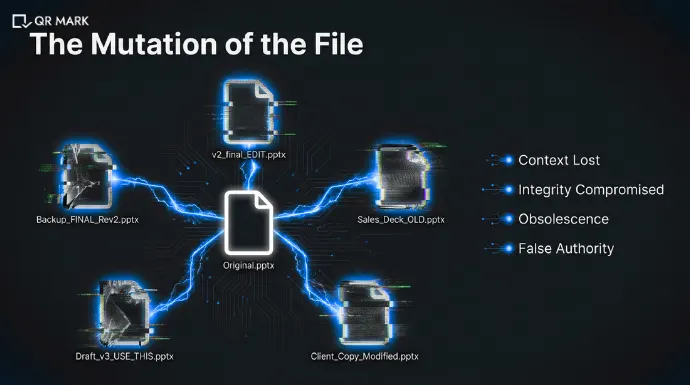
A few days later, it shows up somewhere else renamed, slightly edited, or missing a slide.
Sometimes it’s outdated. Sometimes the branding is off. Sometimes it’s being presented as “official” when it isn’t.
This is a common problem, especially with sales decks, training material, investor presentations, and policy slides. PowerPoint files are easy to copy, forward, and modify once they leave your inbox.
Most people try to solve this by adding passwords, view-only links, or editing restrictions. And while those tools help control access, they don’t really answer the bigger question:
How do you keep control of a presentation after its traditional security is broken?
This guide explains how to secure PowerPoint presentation, why traditional security methods fail, and what newer approaches like QR Code Powerpoint Authentication offer.
A.What does “secure PowerPoint” actually mean?
When people say “secure PowerPoint,” they usually mean stopping others from misusing their slides. In reality, PowerPoint security mostly means protecting the file, not the content inside it.
PowerPoint lets you add passwords or restrict editing, but once someone can open the file, they can still copy slides, save a new version, or share it with others. So “secure” doesn’t mean “can’t be misused.” It usually just means “harder to casually edit.”
Most people think “secure” means nobody can misuse my slides.
But traditional PowerPoint security is really about file protection, not authenticity. You can set a password or make it view-only, but anyone who can open the file has it. They can edit, duplicate, or reshare it as they wish. In practice, “secure” often just means preventing casual changes in your copy. It doesn’t prevent someone from taking the content.
For example:
Microsoft’s own help documentation notes that a password only restricts modification of the original file. An unauthorized person can still open the presentation and save it under a new name.
1.What do most teams expect when they want to secure PowerPoint?
Most teams expect control even after sharing the presentation. They assume that once the slides are sent, they won’t be copied, altered, or passed around freely.
In simple terms, they expect:
- Only the right people can see the slides
- Nobody can change or fake them
- Viewers know which version is official
Unfortunately, traditional PowerPoint security doesn’t fully deliver on these expectations.
2. What does PowerPoint security actually do?
PowerPoint’s builtin security features focus on who can open or edit the file, not on what happens after it’s opened. You can add an open password so only someone with the password can view the slides.
You can add a modified password so that anyone can see it, but only someone with the password can edit it. You can set view-only links in OneDrive so people can only see (not download) your presentation.
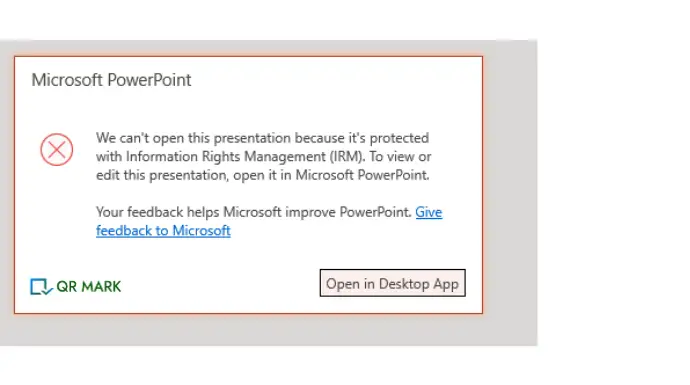
And there are Information rights-management systems (IRM) that can restrict printing or copying. But none of these prevent someone with access from taking the content.
In short, PowerPoint security is about file locks and permissions. It doesn’t guarantee the content won’t be stolen or faked once someone views or saves the file.
B. What are the current methods to secure powerpoint?
The most common ways to secure PowerPoint involve locking the file or restricting actions. These methods reduce accidental misuse, but they don’t stop intentional copying.
Typical methods include:
- Password protection
- Editing and permission restrictions
- Information Rights Management (IRM)
Each helps in a limited way, but none fully protect the content once it’s shared.
Now, let us understand how each of these methods can be implemented to secure powerpoint presentations.
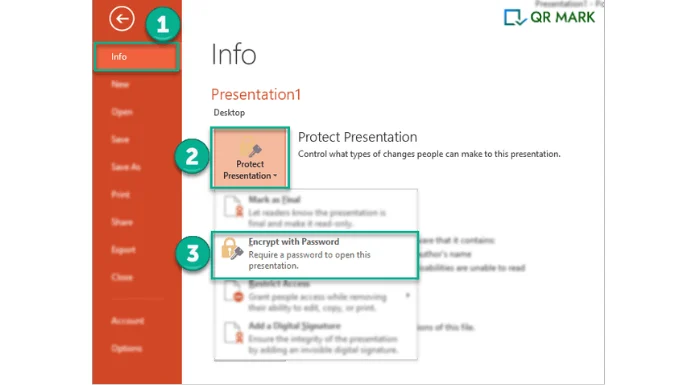
1.How to password protect powerpoint presentation?
Microsoft allows you to add an open password to prevent unauthorized people from opening the file.
To add a password to protect powerpoint presentation, follow these steps:
Steps (Windows & Mac):
- Open the presentation
- Click File → Info
- Select Protect Presentation
- Click Encrypt with Password
- Enter a strong password and confirm
- Save the file
Tip: Use a long password (12+ characters). If the password is lost, the file is unrecoverable.
With this method, You can set:
- A password to open the file
- A password to modify the file (read-only without it)
What it does well:
- Blocks casual access
- Encrypts the file contents
Limits:
- Weak passwords can be cracked
- Anyone with the password can fully copy or share the file
Tips for Strong Security
- Use complex passwords (8+ characters, mixed case, numbers, symbols).
- Don’t use personal info in passwords.
- Remember your passwords as lost passwords mean lost access.
2. How to protect powerpoint presentation by setting up Editing and Permission restrictions?
You can secure PowerPoint by setting up editing and permission restrictions means controlling:
- who can edit the file,
- who can only view it, and
- what actions (editing, copying, downloading) are allowed.
This helps prevent unauthorized changes, accidental edits, or misuse of the presentation.
Follow these steps to protect powerpoint presentation using editing and permissions restrictions:
- Go to File → Info
- Click Protect Presentation
- Choose Always Open Read-Only
OR
- Go to Review → Restrict Editing
- Select allowed actions (e.g., comments only)
- Apply protection
Limit: Users can still save a copy unless additional controls are used.
3. How to protect powerpoint using the Information Rights Management (IRM )System?
By using this method you can control who can access and edit the presentation even after it is shared.
IRM allows the owner to assign permissions such as:
- read-only access,
- disabling printing or copying, and
- setting expiry dates.
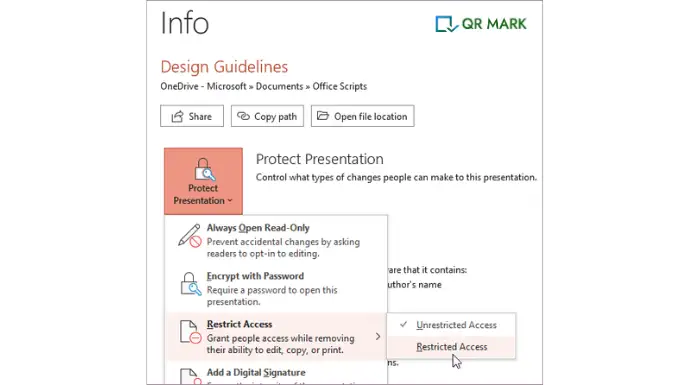
Follow these Steps to secure powerpoint using IRM (Microsoft 365 required):
- Open the presentation
- Go to File → Info
- Click Protect Presentation
- Select Restrict Access
- Choose:
- Who can view/edit
- Whether printing, copying, or forwarding is allowed
- Expiration date
Note: Recipients must sign in with approved accounts.
C. What are the main disadvantages of using these methods to secure powerpoint?
The core problem is this: Once a PowerPoint file is shared, control is lost. Passwords or edit-locks can be bypassed, and cloud restrictions end at the browser. Attackers or even careless insiders can easily duplicate, modify, or redistribute slides.
Here are the reasons, why these methods fail to secure powerpoint presentations:
1.Easy copying
A PowerPoint can be duplicated by saving a new copy, or by copying all slides into another file. PowerPoint’s copy protection does not work very well.
If someone can open the file, they can still share it by printing it as a PDF, copying the text, or saving a new copy without the password. In practice, someone can just open the file and hit “Save As” to get a password-free copy.
They can highlight all slides, right-click copy, and paste into a brand new deck. They can export to PDF or images and then re-convert. The result: they have the same content with no locks.
2.Undetectable alterations
Another person can take the original slides, tweak the content or branding, and pass it off as official.
For example, an employee might grab a corporate presentation, remove or add slides, and present a misleading “company-approved” version.
Because the file format is the same, an altered deck often looks legitimate. Traditional security won’t catch that, since the fakes still open just like the original.
3.Unlimited distribution
Even if you lock a file, anyone with access can share it further. They might print and scan it, email it with the password, or upload it to file-sharing sites.
Training companies and academics face this all the time: a locked file is shared on forums or notebooks without permission.
For instance, lecturers have found entire modules of their slides uploaded to public note-sharing sites.
Once the content is out there, you have thousands of uncontrolled copies you didn’t authorize.
4.Outdated versions spread
Suppose you update your deck to add a slide or fix an error. But someone else is using a downloaded copy.
Your fix won’t reach them. They still have the old file. If that “old” deck gets shared onward, anyone seeing it won’t know it’s outdated.
There’s no easy way to force everyone to use the newest version with just file-level security.
PowerPoint’s usual security tools do not give much control once someone opens the file. Because of this, stronger and smarter ways to protect documents are needed. This is why modern methods like QR code–based security are used, as they help track use, prevent changes, and protect files better than just using a password.
D. What Is QR Code–Based Document Security for Protecting PowerPoint Presentations?
QR Code PowerPoint authentication adds a simple trust layer to a presentation and protect document’s security.
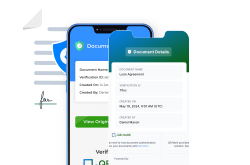
A QR Code is placed directly on the slides (or in the exported PDF). That QR code links to a live verification page that represents the official version of the document.
When someone scans the QR code, they can immediately check:
- Who issued the presentation
- When it was created
- Whether it’s still valid
- Whether it has been changed or revoked
Trust no longer depends on how the document looks or how it was shared. It comes from whether the QR code successfully verifies it.
This approach doesn’t try to stop copying. That’s unrealistic. Instead, it makes the real version easy to confirm and fake or altered versions easy to spot.
Now let’s see how this works in more detail and why it helps.
1.Why Old Protection Methods Fall Short
Traditional PowerPoint protection was built for a time when documents didn’t travel as freely as they do today. Once a presentation is copied or forwarded, most controls stop working.
QR Code PowerPoint Authentication fixes that gap.
I. You Can Tell When Slides Are No Longer Original
With normal PowerPoint security, once someone copies the document, visibility is lost. If slides are edited and resent, there’s no reliable way to know.
With QR Code Powerpoint Authentication, changes are obvious.
When the QR Code is scanned, the document is checked against the issuer’s official record. If the details don’t match, verification fails.
That’s a clear signal: this is no longer the original, approved version.
II.You’re Not Trusting the Document Alone
A fake powerpoint presentation can look identical to a real one.
Same filename.
Same slides.
Same email thread.
None of that proves it’s official.
QR Code Verification checks the document against a trusted source instead. If the QR code doesn’t confirm it, the document shouldn’t be trusted—no matter how convincing it looks.
This makes it much harder for fake or altered presentations to pass as legitimate.
III.Verification Still Works After Sharing
Most protections stop working the moment a document is forwarded. QR Code Document Authentication doesn’t.
Even if the slides are shared multiple times, the QR Code always points back to one official record. Every scan answers a simple question:
Is this the real version or not?
That makes copied or tampered presentations much easier to spot.
IV.You Can Instantly Spot Outdated or Invalid Slides
Presentations change. Some get updated. Others are withdrawn completely.
With QR Code verification, the document’s status is always visible. A quick scan shows whether the slides are:
- Current
- Outdated
- No longer approved
People don’t have to guess which version is right.
2.What Changes With QR Code Powerpoint Protection
Instead of sending copies you can’t control, you give access to one verified source. That source can be managed, updated, or revoked at any time.
Here’s what that changes in practice.
I. One Official Source
The QR Code links to a single, official version of the presentation.
Everyone scans the same code. Updates happen at the source. If access needs to stop, it’s disabled once. This removes version confusion and strengthens document trust.
II. Fewer Uncontrolled Copies
Instead of emailing PowerPoint documents around, people share access.
If downloading is restricted, the slides can’t be easily saved or resent. Even if the link is shared, it still leads back to the controlled source.
That reduces casual sharing and limits the spread of fake or outdated documents.
III. A Clear Trust Signal
The QR Code becomes a visible signal that a document is secured.
Viewers learn that real presentations can be checked. If they see the same slides elsewhere without a working verification page, it raises questions.
This makes fake or unofficial presentations easier to challenge especially when the document represents branded, legal, or policy-level information.
IV. Optional Usage Visibility
Many QR Code Security systems allow scan tracking.
That means issuers can see when and where a document is accessed. Unexpected activity doesn’t go unnoticed. Sharing becomes visible instead of invisible.
IV.How QR Codes Help Reduce Fake Presentations
QR Codes don’t make copying impossible. Screenshots can still happen. Files can still circulate.
But they change the real problem. The real problem isn’t copying. It’s that people can’t tell which presentation is real anymore.
QR-based verification fixes that.
- Copies can exist
- Edited versions can exist
- Screenshots can exist
But only one version verifies against the issuer’s official record. That alone discourages misuse and makes authenticity easy to check.
3.When QR Code Powerpoint Authentication Makes Sense
Basic protection is usually fine when:
- Slides are internal
- Sharing is limited
- Trust is already established
QR Code Powerpoint Authentication makes sense when:
- Presentations are shared with clients, partners, or the public
- Multiple versions exist across email, messaging apps, and downloads
- The slides represent official, branded, or policy-level information
- Using a fake or outdated deck could cause confusion or risk
In these cases, the challenge isn’t stopping copying.
The challenge is helping people quickly confirm which version is real. QR-based verification solves exactly that.
Final Thoughts
If you’ve ever shared a PowerPoint, you already know the problem.
Once it’s sent, it starts traveling. Someone saves a copy. Someone else tweaks a slide. A few weeks later, the deck pops up again and you’re not even sure it’s still the right version.
Most built-in security tools try to “lock” the file. Passwords, view-only links, edit restrictions help a bit, but they don’t really solve what happens after someone opens the slides.
That’s why the idea of securing PowerPoint is slowly changing. Instead of trying to stop copying completely, newer approaches focus on something more practical: helping people know which version is real.
Using a QR Code to point viewers to an official source is one way to do that. It doesn’t block sharing or make things harder to access. It just gives people a quick way to check, “Is this the right deck?”
And for most teams, that’s enough. You may not control every copy but you can make sure the real one is easy to find and easy to trust.

FAQs
1.How do you secure a PowerPoint presentation?
You can secure a PowerPoint by using more than one protection method.
PowerPoint lets you set a password so only certain people can open or edit the file. You can also share the slides using a cloud link with view-only access. This helps stop unwanted changes or downloads.
For stronger document security, some organizations use tools like Information Rights Management (IRM). These tools can block actions like copying, printing, or forwarding slides.
A newer option is not sharing the PowerPoint file at all. Instead, you share a QR code that links to the official version online. People scan the code to view the slides. This lets you control updates and keep one trusted version.
No method is perfect. The goal isn’t to stop copying forever. The goal is to lower risk and make misuse easier to spot.
2. Can QR codes help prevent PowerPoint counterfeiting?
Yes. QR codes add an extra layer of protection.
When you include a QR code in a presentation or email, it links to the official version of the slides. Viewers can scan the code to check what’s real.
QR codes don’t stop copying, but they make fake PowerPoints easier to notice. People learn to trust only the QR-linked version. This helps reduce fake documents and keeps one clear source of truth.
3. How do I restrict editing on a PowerPoint presentation?
You can limit editing by setting the presentation to read-only.
Open the file, go to File → Info → Protect Presentation, and choose Always Open Read-Only. This tells viewers not to make changes.
For stronger limits, go to Review → Restrict Editing. Choose what people are allowed to do, like adding comments only, then protect it with a password.
These steps stop casual edits, but they don’t fully prevent someone from copying the content into a new file.
4. What does Safe Mode mean in PowerPoint?
Safe Mode is used to fix problems, not for security.
When PowerPoint opens in Safe Mode, it turns off add-ins and custom settings. This helps the program open if something is broken or causing crashes.
PowerPoint may start in Safe Mode if it finds an error. You can also open it this way by holding Ctrl while starting PowerPoint.
Safe Mode helps with troubleshooting. It does not protect slides or limit access.
5. How do you make slides uneditable?
You can’t make slides completely uneditable once they’re shared, but you can reduce changes.
Go to File → Info → Protect Presentation and choose Mark as Final or Encrypt with Password.
These options discourage editing and limit access, but they don’t stop someone from copying the content in another file. You can also use QR Codes for document security.

Leave a Reply