



TL;DR
A Google Sheet QR code is just a QR Code created from data sitting in your spreadsheet, like a link, product ID, or Google Form. You can generate QR codes in Google Sheets using a simple formula, do bulk QR code generation Google Sheets style by dragging it down, and even build a clean QR code spreadsheet automation flow for attendance, inventory, or marketing. You can also use a Google Sheets QR code add-on, connect Google Forms QR code Google Sheets, and set up QR code tracking via spreadsheet using smart links and logs.
QR codes are easy to create. Managing them at scale is not.
If you’ve ever tried to create dozens or hundreds of QR codes one by one, you’ve probably felt the friction. Links change. Lists grow. Files get messy. And suddenly, something that should be simple turns into manual work.
That’s why many teams use Google Sheets to generate and manage QR codes.
This approach is especially useful for:
- Teachers and educators managing attendance or class resources
- Operations and admin teams tracking inventory or internal documents
- Marketers running QR-based campaigns
- Event organizers handling registrations and check-ins
- Anyone who already stores links, IDs, or forms in spreadsheets
In this guide, you’ll learn how to turn a Google Sheet into a QR code system, not just a QR code generator.
A.What is a Google Sheet QR code?
A Google Sheet QR code is a QR code created using the value inside a spreadsheet cell.
So if your sheet has:
- A website URL
- A Google Doc link
- A registration form link
- A product SKU
- A student ID
…you can generate a QR code for it inside the sheet.
The best part is that you can set it up so that:
- each row generates its own QR code,
- each QR code is linked to row data, and
- your spreadsheet becomes a spreadsheet-driven QR code system.
This is why people call it a “QR code database” even though it’s just a sheet.
B. Why are people using Google Sheets to generate QR codes?
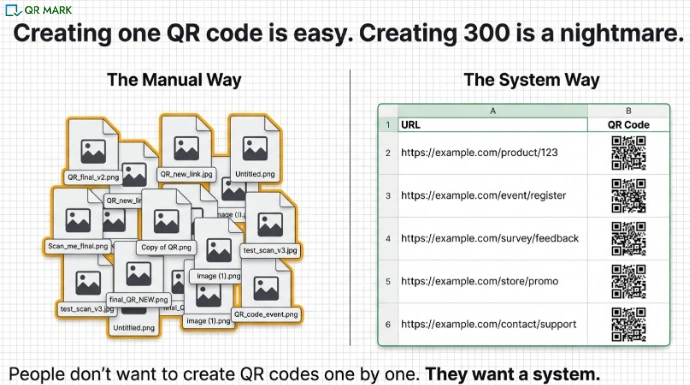
People use QR Codes in google sheet because it solves a very real problem: people don’t want to create QR codes one-by-one.
They want a system.
Something like:
- “I have 300 product links. I want 300 QR codes.”
- “I have student IDs. I want QR codes for attendance.”
- “I have campaign URLs. I want QR codes and a place to manage them.”
- “If a link changes, I want to update it without starting from scratch.”
And that’s exactly where a Google Sheets QR workflow shines.
Google Sheets is already where people store lists, track things, and collaborate. So when you turn it into a QR code spreadsheet, it becomes a simple control center: data on one side, QR codes on the other, and a workflow you can reuse whenever you want.
C. How to create QR codes in Google Sheets (manual methods)
You can create a QR code in Google Sheets manually by using one formula that converts your cell data (like a URL) into a QR code image.
That’s the simplest way to start, and it’s surprisingly fast once you set it up once.
Let’s do it step-by-step.
1.How do you create QR code in Google Sheets using a formula?
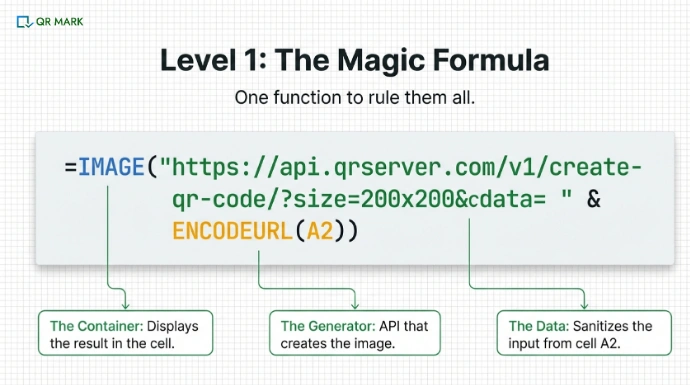
You use the IMAGE() function in Google Sheets and a QR code generator link, so your sheet pulls the QR code image automatically.
Here’s the exact Google Sheets QR code formula you’ll use:
=IMAGE(“https://api.qrserver.com/v1/create-qr-code/?size=200×200&data=” & ENCODEURL(A2))
Now let’s make this feel easy.
Step-by-step: Create your first Google Sheet QR code
- Open Google Sheets.
- In cell A2, paste whatever you want to convert into a QR code.
- Example: https://example.com
- Click on cell B2 (next to it).
Paste the formula:
=IMAGE(“https://api.qrserver.com/v1/create-qr-code/?size=200×200&data=” & ENCODEURL(A2))
- Hit Enter.
And you’ll see a QR code appear in the cell like a small image.
Why this works:
- A2 is your data.
- ENCODEURL() just makes sure the link doesn’t break because of spaces or special characters.
- That long URL is basically a QR code generator website that returns an image.
- IMAGE() displays that returned image inside the cell.
Once you’ve done this once, you can repeat it across the whole sheet.
2.How do you generate QR code for a Google Sheets link?
Same method as above. You paste the Google Sheets link into your cell, and the formula generates a QR code for it.
This is super useful when you want:
- a QR code that opens a shared sheet,
- students to access a class resource sheet,
- staff to open a checklist sheet on a phone instantly.
Step-by-step: QR code for Google Sheets link
- Copy your Google Sheets link (make sure sharing is correct).
- Paste it into A2
- Use the same formula in B2:
=IMAGE(“https://api.qrserver.com/v1/create-qr-code/?size=200×200&data=” & ENCODEURL(A2))
Now your QR code becomes a shortcut to your sheet.
Tip: If this is meant for public use, make sure the sheet link is set to “Anyone with the link can view.” Otherwise scanners will hit an access wall.
3.How to do bulk QR code generation in Google Sheets
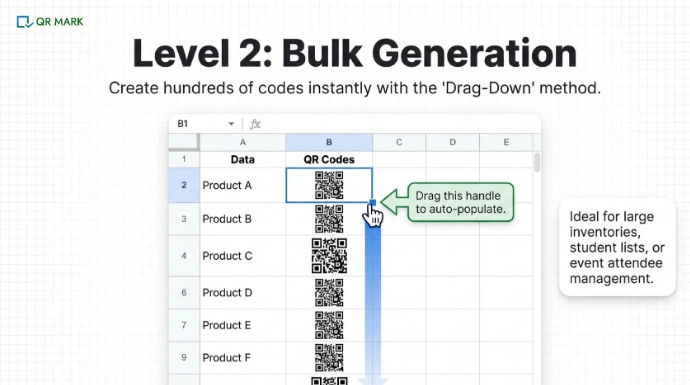
By creating bulk QR Codes, you create the QR code formula once, then drag it down, and Google Sheets generates a QR code for every row automatically.
This is one of the biggest reasons this keyword exists: bulk QR code generation Google Sheets.
Step-by-step: Bulk QR code generation (the easy way)
- Put your list of links or IDs in Column A
- A2: link 1
- A3: link 2
- A4: link 3
- Put the formula in B2
- Click the small square at the bottom-right corner of B2
- Drag it down as far as your data goes
That’s it.
Now your sheet is generating QR codes row-by-row.
This is the foundation of QR code spreadsheet automation, because you’ve turned a spreadsheet list into scannable codes in minutes.
4.How do you automate QR code creation in Google Sheets?
You can automate it by using a Google Apps Script that fills your QR code column automatically, especially when your sheet keeps getting new rows.
This method is useful when:
- your sheet is updated daily,
- multiple people add rows,
- you don’t want anyone to accidentally mess up formulas,
- you want a clean system that just works.
Here’s a simple script that adds QR codes for your data in column A.
function generateQRCode() {
const sheet = SpreadsheetApp.getActiveSheet();
const data = sheet.getRange(“A2:A”).getValues();
for (let i = 0; i < data.length; i++) {
if (data[i][0]) {
const url = “https://api.qrserver.com/v1/create-qr-code/?size=200×200&data=”
+ encodeURIComponent(data[i][0]);
sheet.getRange(i + 2, 2).setFormula(`=IMAGE(“${url}”)`);
}
}
}
Step-by-step: How to run this without feeling like a developer
- Open your Google Sheet
- Click Extensions → Apps Script
- Delete any dummy code in the editor
- Paste the script above
- Click Run
- Approve permissions (Google will ask once)
Now it fills your QR code column for any data it finds in column A.
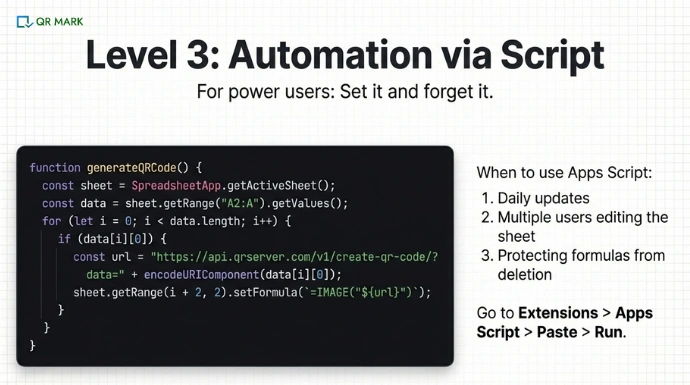
This is what people mean by automated QR code Google Sheets. At this point, you have two paths. You either keep everything formula- and script-based, or you use a Google Sheets QR code add-on that hides the complexity for you.
D. What are Google Sheets QR code add-ons and when should you use them?
Google sheet Add-ons can generate QR codes without formulas, and they’re especially helpful if your team isn’t comfortable touching formulas.
People often use a Google Sheets QR code add-on when:
- many non-technical people use the sheet,
- you want a “select range → generate QR” flow,
- you want cleaner exporting options.
Add-ons can be great, but I’ll be real: formulas are usually faster and lighter once you learn them.
A simple rule:
- If it’s you building the system → formulas are great.
- If it’s a team using the system → add-ons reduce errors.
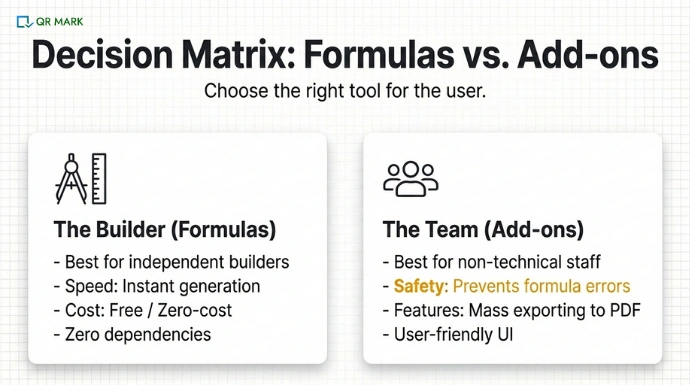
Now let us understand when to use qr based add-ons in google sheet depending on the use case. Whether an add-on is the right choice depends entirely on what you want the QR code to do.
Here’s how that breaks down in real-world scenarios.
Use case 1: Teams that only need QR codes generated (and nothing more)
This is the classic add-on use case.
For example:
- A teacher generating QR codes for class resources
- An admin creating QR codes for documents
- A small team sharing links via QR
In these situations, a Google Sheets QR code add-on works well because:
- The data rarely changes
- You don’t need scan tracking
- You don’t need redirection later
- You just want a scannable code
Add-ons shine here because they reduce cognitive load. Anyone can use them.
Use case 2: Education workflows (forms, documents, classrooms)
Add-ons are especially popular in schools and colleges. Why?
Because educators often want:
- QR codes for Google Forms
- QR codes for Google Docs
- QR codes for shared resources
- A no-code setup
In these cases:
- Add-ons help teachers generate QR codes for Forms quickly
- They reduce dependency on IT teams
- They work well for attendance, assignments, and feedback forms
This is where add-ons support QR code attendance Google Sheets and Google Forms QR code Google Sheets workflows but only at the creation level.
What they don’t do:
- Authenticate documents
- Track whether a QR was reused
- Verify whether a document is still valid
Use case 3: One-time or short-term QR projects
Add-ons also work well for temporary needs, such as:
- A workshop
- A seminar
- A short campaign
- A one-off event
In these scenarios:
- QR codes don’t need to live long
- There’s no need to update destinations later
- There’s no need to track scans in detail
Add-ons help you move fast, finish the task, and move on. Everything we’ve discussed so far focuses on creating QR codes.
But in some cases, creation isn’t the problem, trust is.
Use Case 4: QR Code for document authentication in google sheets
QR codes aren’t always meant to open a website or a form. In many cases, their real job is much simpler and much more important.
They are used to help someone answer a basic question: “Can I trust this document?”
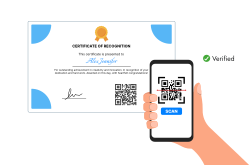
This is where QR code document authentication comes in. Instead of relying on how a document looks, a QR code is added to it that points to a verification record.
When someone scans the code, they can immediately check whether the document was actually issued by the right organization and whether it’s still valid.
For example, a school certificate or a business invoice might look genuine, but a quick scan of the QR code can confirm the issuer, issue date, and current status without emails or manual checks.
To make this easier, there are also add-on style tools available, like QR Mark, that are designed specifically for document authentication.
These tools don’t just create QR codes, they connect each code to a live verification record, so institutions and businesses can issue documents in bulk and let anyone verify them instantly by scanning the QR code.
E.Limitations & gotchas of using Google Sheets QR codes
Google Sheets makes QR code creation easy, but it’s important to know where its limits are.
Here are the most common gotchas people run into:
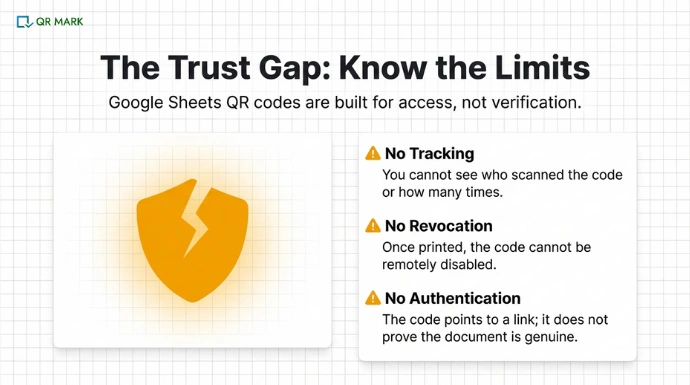
1. No built-in scan tracking
Google Sheets does not tell you how many times a QR code was scanned or who scanned it. Therefore, in case of document fraud related to the one’s created in google sheet, simply generating qr codes in google sheets cannot be used.
2. No expiry or revocation
Once a QR code is printed or shared, you can’t disable it natively.
3. No authentication or tamper detection
A QR code created from a sheet only opens data. It does not prove that a document is genuine or officially issued.
4. Permission issues can break access
If the underlying Google Sheet, Doc, or Form permissions change, the QR code may suddenly stop working.
5.Easy to reuse or reshare
Anyone can copy the QR code image and use it elsewhere without your knowledge.
These limitations are fine for simple workflows, but they matter when accuracy, control, or trust is important.
F.When NOT to use Google Sheets QR codes
Google Sheets QR codes are great for convenience, but they’re not the right choice in every scenario.
Avoid relying on them when:
- You need to verify authenticity of documents or certificates
- You must revoke or invalidate QR codes after issuing them
- You need proof of issuance or ownership
- You want detailed scan history or misuse detection
- You are issuing official, legal, or compliance-related documents
In these cases, a spreadsheet-generated QR code is too lightweight. You need a system where each QR code is tied to a live verification record, not just a link.
G. What are the best practices to follow when using QR Codes for Google Sheets
If you’re printing or sharing QR codes generated in Google Sheets, a few small tweaks can make a big difference.
Here are some best practices that you can follow generally:
1.Use a larger QR size
Increase the image size in your formula for better scanning:
size=300×300 or size=400×400
2.Adjust row height and column width
Make sure the QR code is not compressed inside the cell. Tall rows and wider columns improve scan reliability.
3.Test before mass printing
Always scan a few QR codes from:
- A phone camera
- Printed paper
- Screens at different sizes
4.Export as PDF for clean output
When printing, download the sheet as a PDF instead of printing directly. This preserves spacing and image clarity.
5.Label your QR codes clearly
If possible, add a short label next to each QR code (for example: “Scan to register” or “Scan to verify”). This improves user trust and scan rates.
Conclusion
Google Sheets works best for QR codes when you think in rows, not images.
Each row becomes a record. Each record gets a QR code. And suddenly, your spreadsheet is doing real work, generating, organizing, and updating QR codes from a single source of truth.
For educators, admins, marketers, and small teams, this setup is often more than enough. It’s fast, flexible, and easy to scale without special tools or paid software. But Google Sheets QR codes are built for access, not verification.
They don’t tell you who scanned the code, whether it was reused, or whether a document is authentic. They can’t expire, revoke, or prove issuance. And that’s okay, as long as you know those limits. Use Google Sheets when you need a simple, repeatable QR workflow. Move beyond it when trust, control, or verification matters.
Once you understand that line, you can build QR systems that are not just easy to create but actually reliable.
FAQs: Google Sheet QR Code
1.How to create QR code in Google Sheets without an add-on?
You can create a QR code in Google Sheets without using any add-on by using the IMAGE() function along with a QR code API link and your cell data. This method pulls a QR code image directly into the cell based on the value you provide, such as a URL, text, or ID. It’s simple, free, and works well when you want full control without installing extra tools.
2.Can you generate QR code from Google Sheets for a whole list?
Yes, you can generate QR codes for an entire list very easily. You just add the QR code formula once and drag it down the column. Google Sheets automatically creates a QR code for every row based on its data. This makes it ideal for bulk QR code generation when you’re working with many links, products, or records at once.
3.What is the best Google Sheets QR code formula?
The most commonly used and reliable formula is:
=IMAGE(“https://api.qrserver.com/v1/create-qr-code/?size=200×200&data=” & ENCODEURL(A2))
This formula works because it safely converts your cell data into a QR code image and displays it directly in the spreadsheet. It’s widely used because it’s simple, flexible, and doesn’t depend on any add-ons.
4.Can you use Google Sheets for QR code attendance?
Yes. One of the cleanest ways to handle QR code attendance is by using Google Forms connected to Google Sheets. You create a form for attendance, generate a QR code for the form link, and let people scan it to submit their details. Every scan and submission is automatically logged in the linked spreadsheet, making attendance tracking fast and reliable.
5. Can you do QR code inventory tracking Google Sheets style?
Yes. Google Sheets works well for basic QR code based inventory tracking. You place each product or asset in its own row, generate a QR code for that row, and attach the QR code to the physical item. When someone scans the code, they can instantly access the correct record, which speeds up checks and reduces manual errors.
